Each section of this post tells one step of Sam's story, then gives you a Try it with the real commands from my Docker and Kubernetes labs. You can read the story on its own, or run the steps as you go.
The post has two parts. Part 1 runs Sam's stall with Docker. Part 2 grows it into a chain with Kubernetes.
Part 1: Docker
One stall on one computer. Sam packs the kitchen into boxes and runs a small team from one plan, until the lunch rush shows where one computer runs out.
One stall on a quiet morning
Why containers
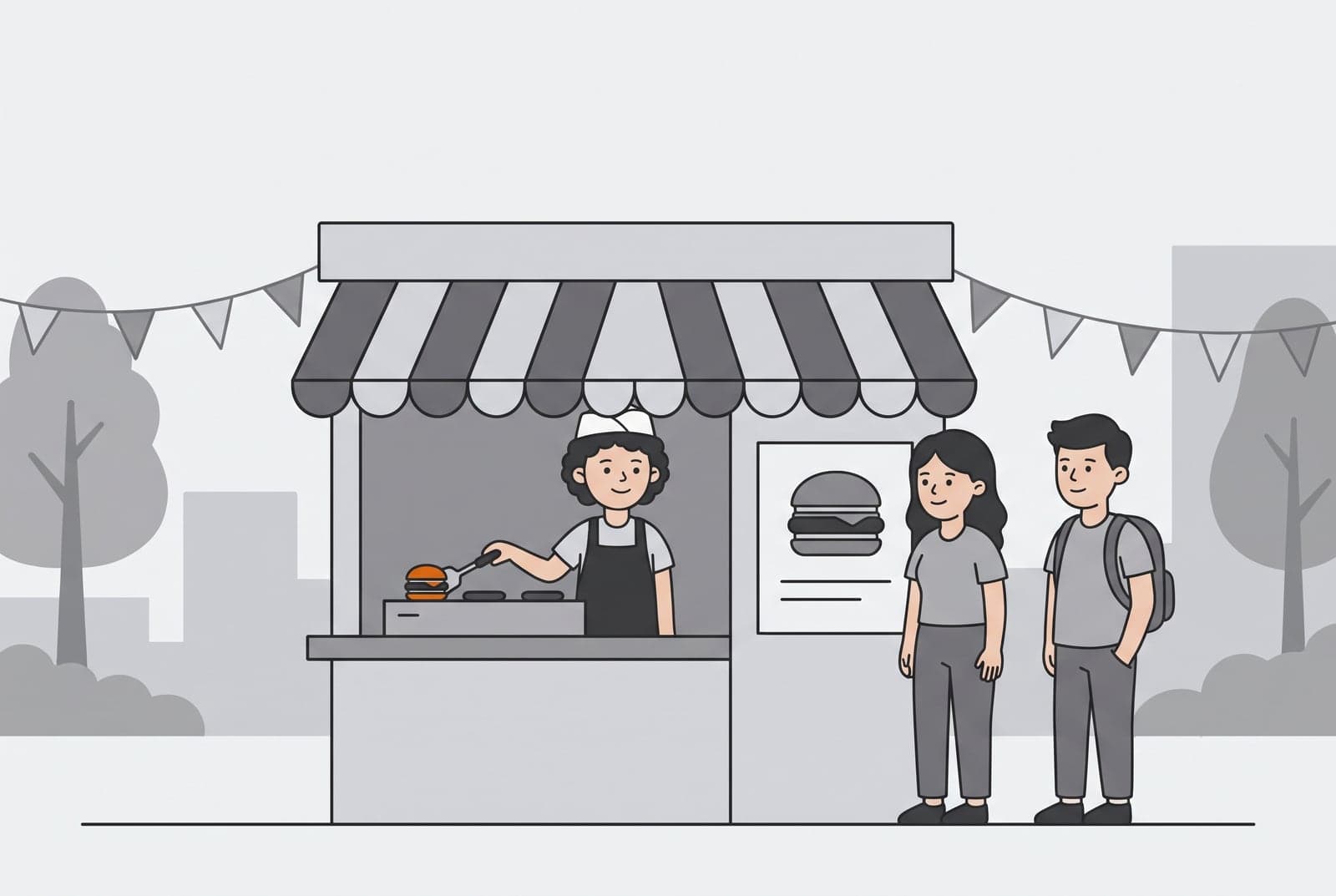
It's a calm morning at the campus fair, and Sam is setting up a single burger stall.
Everything is in its place. Sam knows exactly which burner runs hot, where the spatula sits, how much salt goes into the seasoning mix, and how to balance the gas valve so the flame doesn't flicker out. Customers come one at a time. Sam takes the order, cooks the patty, slides it into a bun and hands it across the counter.
It runs smoothly because Sam is the only one in the kitchen, and everything the stall needs to know is in Sam's head.
Almost every web app starts the same way, running straight on your own laptop. You clone a repository, install Node or Python, tune your local paths, and connect a database using settings from a .env file you last touched three months ago. You hit localhost:3000, the page renders, and it all feels solid.
Then you ask a teammate to run it on their laptop, or you put it on a fresh cloud server, and it breaks. Their Node is a different version. A tool your app needs was never installed. A setting lived only in your .env file.
You mutter the oldest line in software engineering: "It works on my machine."
Pause and think: The app runs on your laptop but fails on a teammate's. What is actually different? It's rarely the application code. It's almost always the kitchen around it.
Try it: get your kitchen ready
Before Sam can open a second stall, you need the tools. This takes about ten minutes.
-
Install Docker. On Windows or Mac, install Docker Desktop and start it. On Linux or WSL, install Docker Engine and the Compose plugin.
-
Get the labs.
git clone https://github.com/chinthanasathyajithcs/learn-docker-and-k8s-basics-in-1-hr.git cd learn-docker-and-k8s-basics-in-1-hr -
Check that Docker is running.
docker --version
docker compose version
docker info
You should see version numbers. If you see
Cannot connect to the Docker daemon, start Docker Desktop and wait until it says it's running.
Use Wi-Fi for the next part. The first start of the Docker lab downloads about 0.3 GB.
The recipe card and the boxes
Images and containers
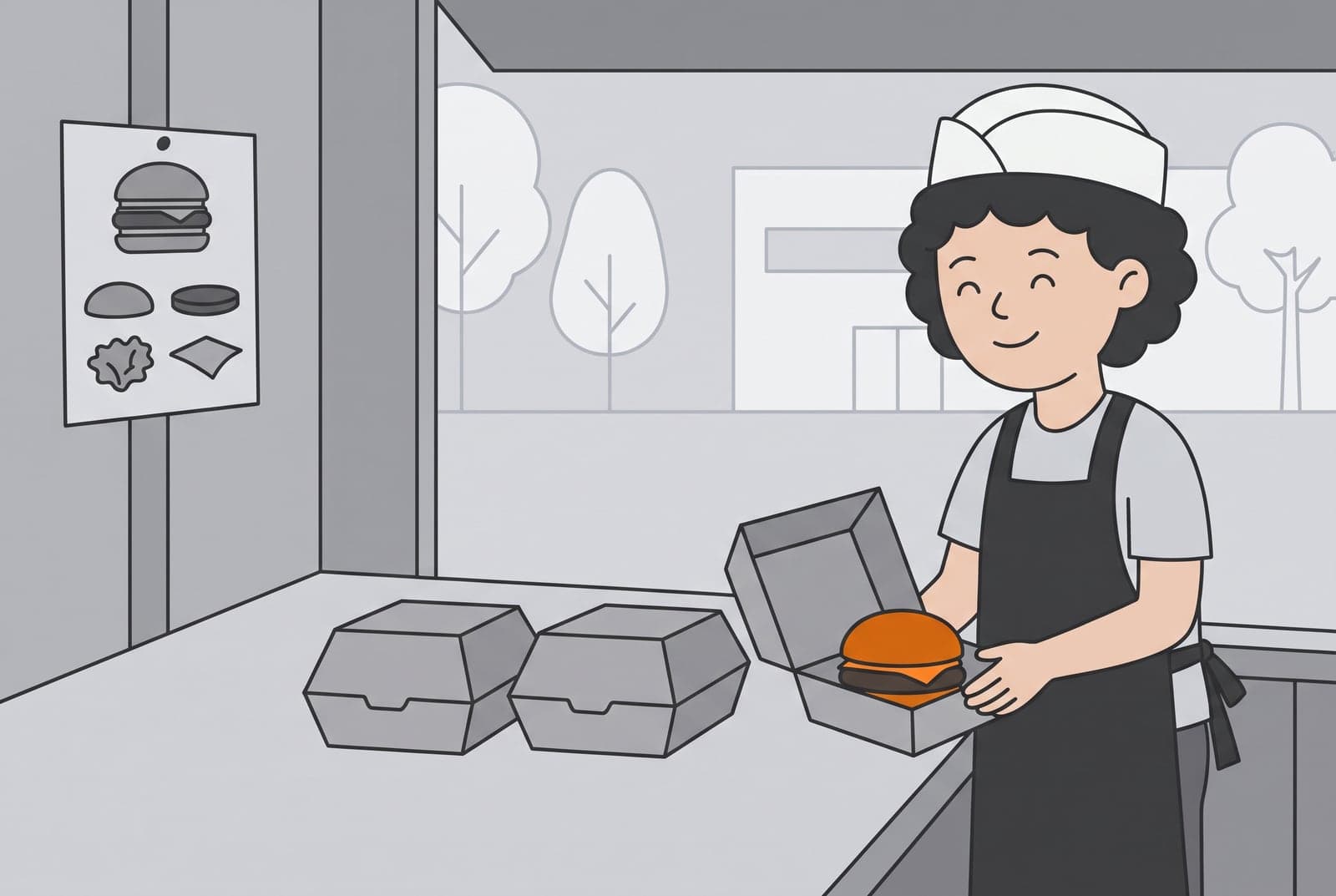
The trouble is that everything lives in Sam's head. A friend who comes to help can't make the same burger without asking Sam at every step, and a second stall would need a second Sam. Your app has the same trouble: its kitchen only exists on your laptop.
So Sam writes the burger recipe on a card and pins it to the wall. It lists every step in order, with a simple picture for each one. Every cook who reads the card makes the same burger.
Before the fair opens, Sam packs a box for each stall: the tools, the buns, the sauce and a copy of the card. Every box is packed in exactly the same way, so it does not matter which box a stall opens.
In software, the recipe card is an image. It holds everything the app needs to run: the language, the libraries and the app's own code. You build an image once, and it does not change. When you run an image, you get a container. A container is like opening one of those boxes. It is a working copy that you can start, stop and throw away, while the card stays on the wall.
Pause and think: If one cook changes the sauce inside one box and the other boxes stay as they are, what happens when that box is thrown away?
Try it: build the recipe and open a box
-
Go into the lab's Docker folder:
cd docker-lab -
Open
Dockerfilein a text editor. The line that starts withFROMis where the recipe starts. This one starts from a small Python image. -
Build the image and start the containers:
docker compose up --build -d--buildbuilds the cashier and the notebook from the recipe card, theDockerfile. The filing cabinet and the bell use ready-made images, so they are only downloaded.-druns everything in the background, so your terminal is free again. -
Wait for lines such as
Container docker-lab-cabinet-1 Started. The first start takes several minutes because of the downloads.
The kitchen team
Docker Compose
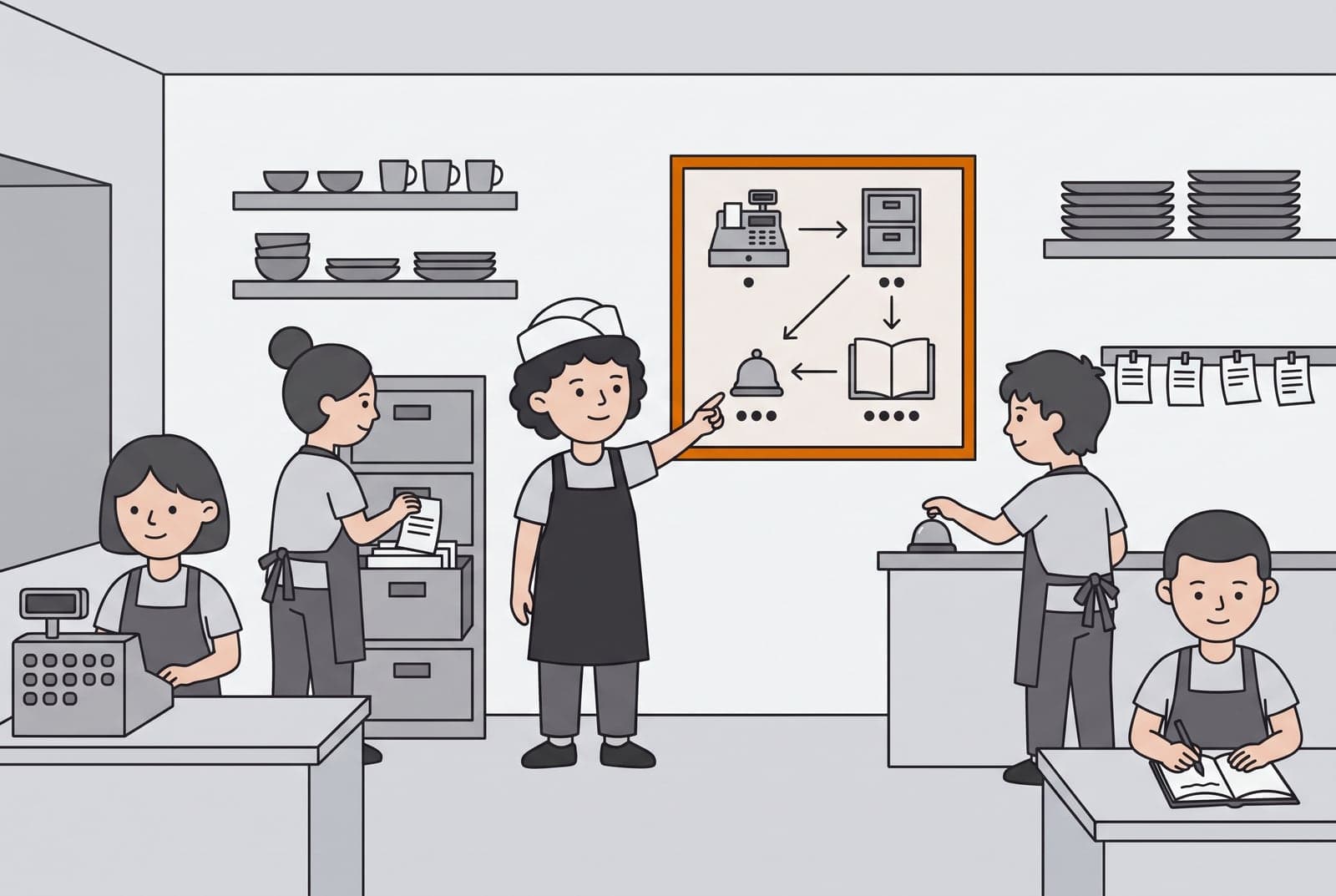
A box gets one job done. A busy stall needs several jobs done at the same time. Someone takes the orders. Someone keeps them. Someone tells the kitchen when a new one comes in, and someone writes everything down.
So the stall grows into a small kitchen with four helpers, each at their own station. A cashier takes orders at the register. A clerk looks after the filing cabinet, where every order is kept. A helper rings a small bell for every new order. Another helper listens for the bell and writes each order in a notebook.
More helpers bring a new problem. They have to start together, and in the right order: the cashier can't file an order before the cabinet is open, or ring a bell that isn't there yet. And they have to find each other without Sam walking each one across the kitchen.
So Sam draws one plan and hangs it on the wall. It shows every helper and who waits for whom. Sam doesn't run every station any more. Sam points at the plan, and the team follows it.
In software, that plan is Docker Compose. A real app is often more than one box too: a web page, a database and a few smaller programs around them. You list every part in one file, docker-compose.yml, and each part is a service that runs in its own container. One command starts them all. Compose starts them in the right order and connects them on a private network, where they find each other by name instead of by address.
In the lab, the four helpers keep their story names. cashier is the web page that takes orders (FastAPI). cabinet keeps every order (PostgreSQL). bell rings once for every new order (RabbitMQ). notebook is a small Python program that listens for the bell and writes every order down.
Pause and think: The cashier finds the cabinet by the name
cabinet, never by an address. If boxes are thrown away and packed again all the time, why is a name the safer choice?
Try it: read the plan and follow one order
Your four helpers are already running from the last step. Stay in the docker-lab folder, and let's follow one order through the kitchen.
-
Read the plan. Every helper is listed in
docker-compose.yml. Ask for their names:grep -E '^ [a-z]+:' docker-compose.ymlYou'll see all four:
cabinet,bell,cashierandnotebook. -
Make sure everyone has turned up.
docker compose psIf some are still starting, give them a minute and ask again. When all four say
healthy, every helper has passed its own check and is ready to work. -
Ask the cashier if the stall is open. Open http://localhost:9000/healthz in your browser. The cashier answers:
{"status":"ok","service":"cashier","env":"dev"}Remember this page. Whenever something feels wrong, it's the first place to look.
-
Place your first order. Open http://localhost:9000 and fill in the Place an Order form:
- Order number:
1001 - Item:
Cheeseburger - Status:
NEW
Select Place order. The page says
Saved order 1001., and your order shows up in the Orders table.That one click kept the kitchen busy. The cashier filed the order in the filing cabinet, then rang the bell with the message
order.created:1001. The next three steps follow the order to each helper. - Order number:
-
Open the filing cabinet. Ask the database what it's keeping:
docker compose exec cabinet psql -U sam -d stall -c "SELECT * FROM orders;"docker compose exec cabinetmeans "run this command inside thecabinetcontainer". Your order is there, in a small table. -
Listen for the bell. Open http://localhost:15672 and sign in with
guest/guest. Go to Queues and Streams, pick the orders queue, open Get messages and ask for one message. It readsorder.created:1001: the bell the cashier rang in step 4. -
Read the notebook. The notebook keeper heard that bell and wrote the order down:
docker compose logs notebookLook for a line like
2026-10-26T09:15:02 order.created:1001. Place another order in the browser, run the command again, and watch a new line appear.
The lunch rush
Docker's limits
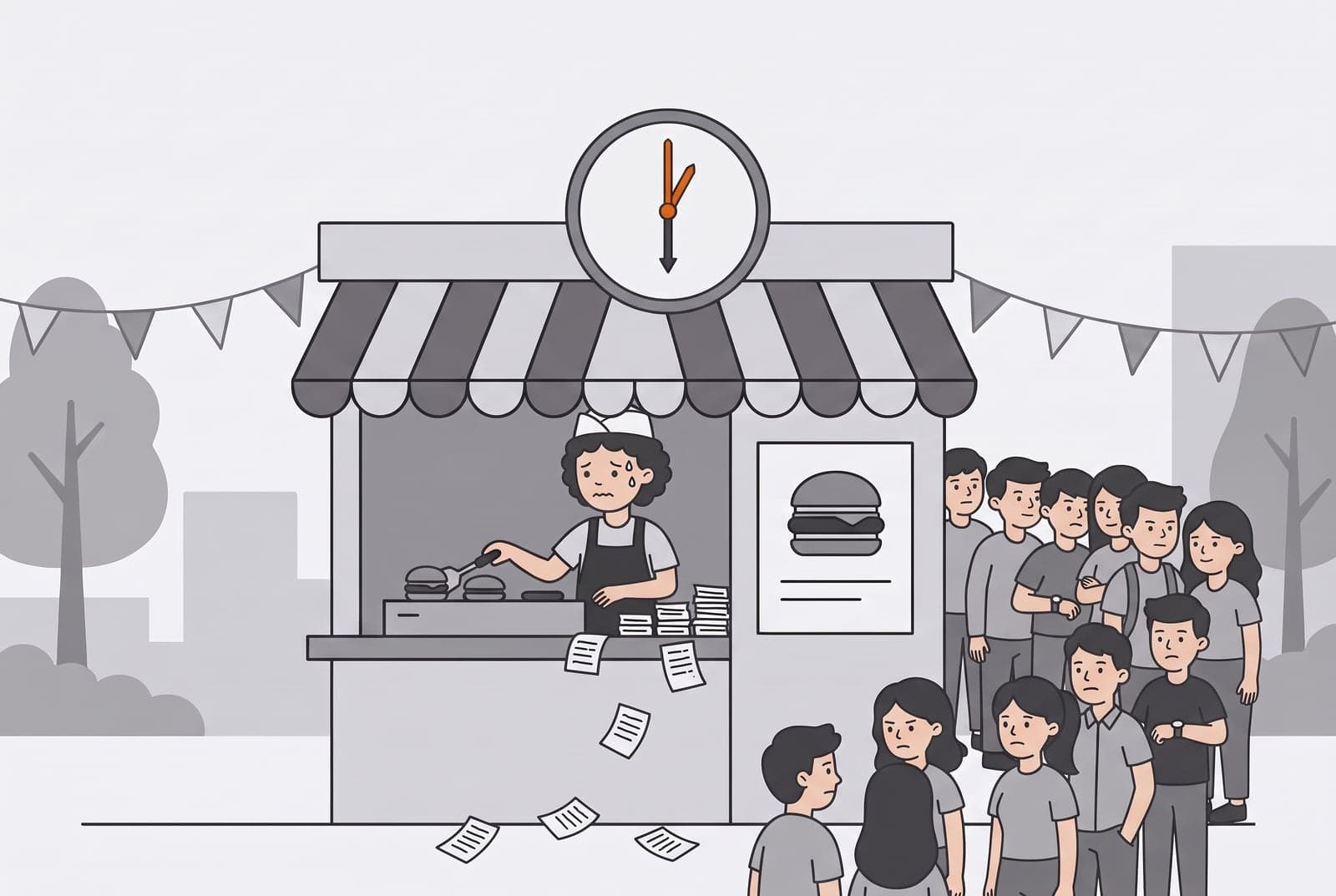
The plan on the wall works. Every helper knows their station, and each order goes from the register to the cabinet, the bell and the notebook. But there's still only one of each, and one counter for the whole fair to queue at.
Then lunchtime comes, and a crowd gathers around the stall. The helpers are busy at their own stations in the back, so Sam is alone at the front counter, taking orders and flipping burgers as fast as the grill allows. Order slips pile up on the counter. Some fall to the ground. The crowd keeps growing.
The obvious fix is more counters. If one cashier isn't enough, start three.
Docker can do that. You ask for more copies of one service, and Docker starts them. There's a catch, though. The cashier opens on a numbered door on your computer, called a port, and its door is 9000. Every copy wants that same door, and only one program can own a door at a time. So the second and third cashiers can't open.
There's a second catch. When the cashier crashes, it stays down. You can tell Docker to restart a container that crashes, and the lab's plan does that for the notebook, but not for the cashier. Either way, Docker does what the plan says on this one computer, and nothing more. It doesn't watch the stall for you.
Pause and think: What would the stall need to survive a lunch rush, or a cashier who collapses? Keep your answer in mind. The next part of the story answers it.
Try it: start more cashiers, then lose one
The stall is still running from the last step. Stay in the docker-lab folder.
-
Ask for three cashiers.
docker compose up -d --scale cashier=3The command stops with an error about port 9000. That's expected, and it's the lesson: the first cashier already has the door, so the second and third can't open it.
-
Go back to one cashier.
docker compose up -d --scale cashier=1 -
Make the cashier collapse. This stops it, as if its program had crashed.
docker compose kill cashier
docker compose ps -a
The cashier shows
Exited. Open http://localhost:9000: the page no longer opens. -
Nothing brings it back, so you do.
docker compose start cashierOpen http://localhost:9000 again. The cashier is back at the counter.
Part 2: Kubernetes
Sam stops cooking and becomes the manager. The stall grows into a chain that keeps itself running, with a front desk, a back room and a check on every cook.
Three stalls and a manager
Pods and Deployments
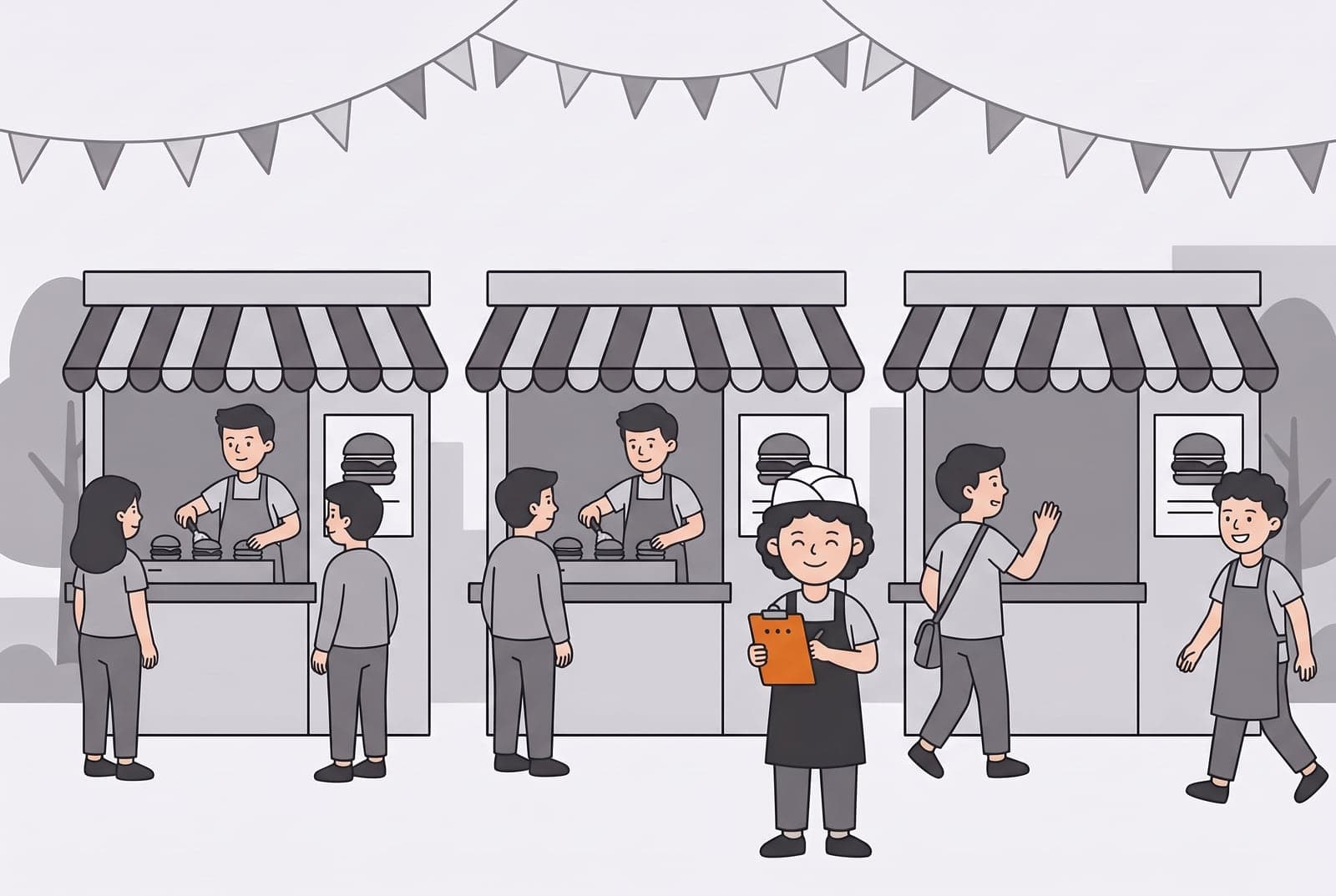
The lunch rush left Sam with two problems. One stall can't take more counters, because there's only one door. And when the cashier collapsed, the stall stayed closed until you opened it yourself.
So Sam stops cooking and becomes the manager. Sam opens three stalls, all the same, each with its own cook. On a clipboard, Sam writes one instruction: keep three stalls running, always.
Then Sam watches. Halfway through the day, the cook at the right stall picks up his bag, waves and walks off. Sam doesn't jump behind the counter. A new cook is already walking in, because the clipboard says three and only two are open.
In software, Sam the manager is Kubernetes. It runs your containers on a group of computers called a cluster, and each computer in it is a node. You stop starting containers one by one. You write down what you want, and Kubernetes keeps making the cluster match it.
The clipboard is a Deployment. It says "keep three copies of this app running." Each running copy is a pod: one cook at one stall. A pod holds one or more containers, and most of the time just one. When a pod goes away, the Deployment notices that it has fewer than three and starts a new one.
In the lab, each stall runs nginx, a small web server, so the cluster stays light on your laptop.
Pause and think: You delete one pod, and a new one turns up with a different name. Who brought it in? And in this story, what is the only thing that lasts?
Try it: open three stalls, then lose a cook
This is the biggest setup in the post. The lab builds a small practice cluster on your own computer, with one node in charge (the control plane) and two worker nodes. All three are Docker containers, so nothing touches a real server, and you can throw the whole thing away and start again.
Use Wi-Fi for this part too. The cluster and the lab images are about 0.5 GB. The Dev Container below downloads roughly 1 GB more.
-
Close the Docker stall. You're still in the
docker-labfolder from the last part. Stop the four helpers so your laptop has room for the cluster:docker compose down -
Open the Kubernetes lab in a Dev Container. Docker Desktop needs at least 2 CPUs and 4 GB of memory set aside for this.
- Install VS Code and its Dev Containers extension.
- Open the
k8s-labfolder of the labs in VS Code. - Choose Reopen in Container when VS Code asks, and wait until the terminal prints a list of nodes.
The lab's README has two other ways in: GitHub Codespaces in the browser, or a native Linux or WSL setup.
-
Look at the fairground.
kubectl get nodesYou should see three nodes, all
Ready: onecontrol-planeand two workers. -
Read the clipboard.
cd labs/01-first-deploymentOpen
deployment.yaml. It asks for:name: stall, the name of the Deployment.replicas: 3, three pods, so three cooks.image: nginx:1.27, the recipe card every pod is packed from.containerPort: 80, the door the web server listens on.
-
Hand the clipboard to the cluster.
kubectl apply -f deployment.yamlIt answers
deployment.apps/stall created.kubectl applymeans "make the cluster match this file." Run it again and nothing changes, because the cluster already matches. -
Watch the cooks start.
kubectl get pods -o wide -w-o wideadds more columns, and-wkeeps the list updating. The three pods go fromContainerCreatingtoRunning, and theNODEcolumn shows which computer each one landed on. Kubernetes spreads them across the workers, so one computer failing doesn't close every stall. PressCtrl+Cto stop watching. -
A cook leaves. Copy the name of one pod, delete it, and look again straight away:
kubectl get pods
kubectl delete pod <pod-name>
kubectl get pods
There are three pods again, and one has a new name. The pod you deleted is gone for good. The Deployment brought in a new cook, because the clipboard still says three.
-
Break it on purpose. In
deployment.yaml, change the image to a version that doesn't exist:image: nginx:doesnotexistApply it and look at the pods:
kubectl apply -f deployment.yaml
kubectl get pods
A new pod is stuck in
ErrImagePullorImagePullBackOff. Ask it why:kubectl describe pod <stuck-pod-name>The Events list at the bottom says the image couldn't be found. The stalls usually stay open, though. Kubernetes swaps pods a few at a time, so the old cooks keep serving while the new one waits for a recipe card that doesn't exist.
-
Fix it. Change the image back to
nginx:1.27, then apply again:kubectl apply -f deployment.yaml kubectl get podsAfter a short wait, all three pods are
RunningwithREADYat1/1, and the broken one is gone. -
Check your work.
bash verify.shIt prints
PASS: stall has 3 ready cooks. Leave the stalls running. The next part needs them.
Five stalls, one front desk
Services and scaling
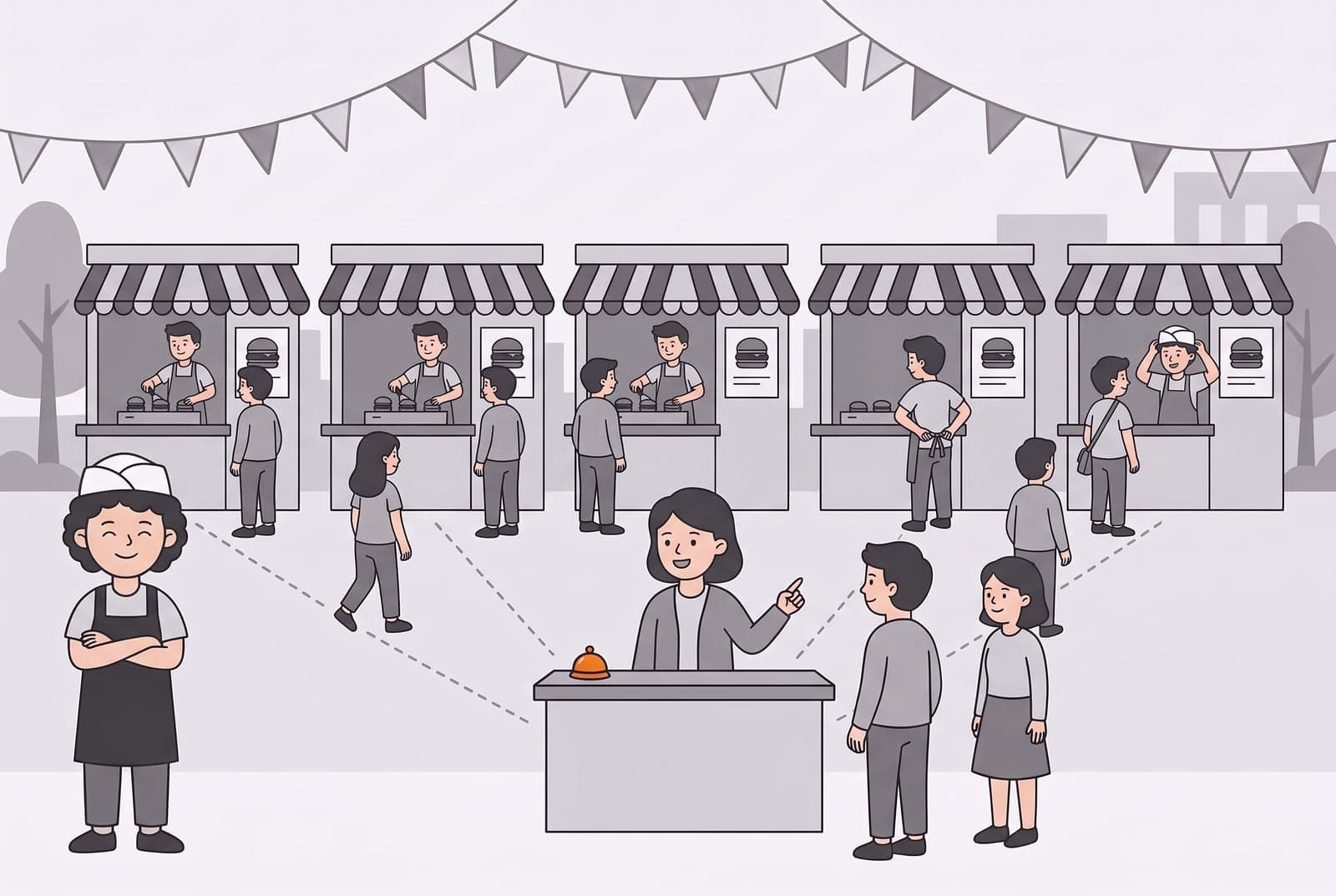
Three stalls are open now, and the clipboard keeps them that way. But the customers don't know which stall is which, and they shouldn't have to. Every cook works at their own spot, and when a cook is replaced, the new one gets a new spot. A customer who walks to where the old cook stood finds nobody there.
So Sam puts a front desk in the middle of the fair. A receptionist stands behind it and points each customer to a stall whose cook is ready. Customers only need to find the desk. Sam stands at the side with arms crossed, because the desk does the sending now.
Then lunchtime comes again, and this time Sam is ready for it. Sam opens two more stalls, five in all. At the two new ones, the cooks are still tying their aprons and putting on their caps, and the receptionist sends them customers as soon as they're ready. When the rush is over, the two extra stalls close again.
In Kubernetes, the front desk is a Service. It isn't the same as a service in Docker Compose. There, a service was one helper on the kitchen's plan. Here, a Service is the front desk that sits in front of every copy of one helper. Every pod gets its own address inside the cluster, and a new pod gets a new one, so nothing should talk to a pod directly. A Service gives the whole group one address that stays the same, and sends each visitor to a pod that's ready. It finds its pods by a label: this one looks for app: stall, the same label the Deployment puts on every cook.
Opening more stalls is scaling. You change the number on the clipboard from three to five, and the Deployment does the rest. The front desk keeps its address. Only the list of cooks behind it grows.
The lab has one more trick. Sam can change something in every stall without closing any of them: new cooks start first, and the old ones leave only once the new ones are ready. That's a rolling update. If the change turns out badly, a rollback takes every stall back to how it was.
Pause and think: You go from three cooks to five, then back to three. Does anything change for a customer standing at the front desk?
Try it: open the front desk and scale for lunch
Your three stalls from the last part are still running.
-
Open the front desk. Move to the next lab's folder and apply its Service:
cd ../02-services-and-scaling kubectl apply -f service.yaml kubectl get svc front-desksvcis short for Service. ThePORT(S)column shows80:30080/TCP. The30080is the door the cluster opens on each node, and the cluster setup links that door to port8080on your computer. -
Visit the stalls. Open http://localhost:8080. You should see a page titled Welcome to nginx! Refresh a few times. Every visit goes through the same front desk, which picks a ready cook each time.
-
See who is behind the desk.
kubectl get endpoints front-deskThe
ENDPOINTScolumn lists the addresses of the three ready pods. These are the cooks the desk can send customers to. -
Scale up for lunch.
kubectl scale deploy stall --replicas=5
kubectl get endpoints front-desk
Wait a few seconds and run
kubectl get endpoints front-deskagain. Now there are five cooks: you'll see three addresses and then+ 2 more.... The desk's own address didn't change. -
Close the extra stalls after the rush. The last part's check expects three, so go back:
kubectl scale deploy stall --replicas=3 -
Change every stall without closing one. Switch the stalls from
nginx:1.27tonginx:1.27-alpine, a smaller build of the same version:kubectl set image deploy/stall nginx=nginx:1.27-alpine kubectl rollout status deploy/stallrollout statuswaits until the update is done. To watch it happen, runkubectl get pods -wand pressCtrl+Cwhen you've seen enough. New cooks start, and old cooks leave only after the new ones are ready. -
Roll it back. Pretend the change was a mistake, and go back to the version before:
kubectl rollout history deploy/stall
kubectl rollout undo deploy/stall
kubectl rollout status deploy/stall
rollout historylists the versions Kubernetes remembers, androllout undoreturns to the one before. Check which image the stalls use now:kubectl get deploy stall -o jsonpath='{.spec.template.spec.containers[0].image}'; echoIt prints
nginx:1.27. -
Check your work.
bash verify.shIt prints
PASS: front desk reachable on :8080. Leave the front desk and the stalls in place.
The notice board, the safe and the locker
Config, Secrets and storage
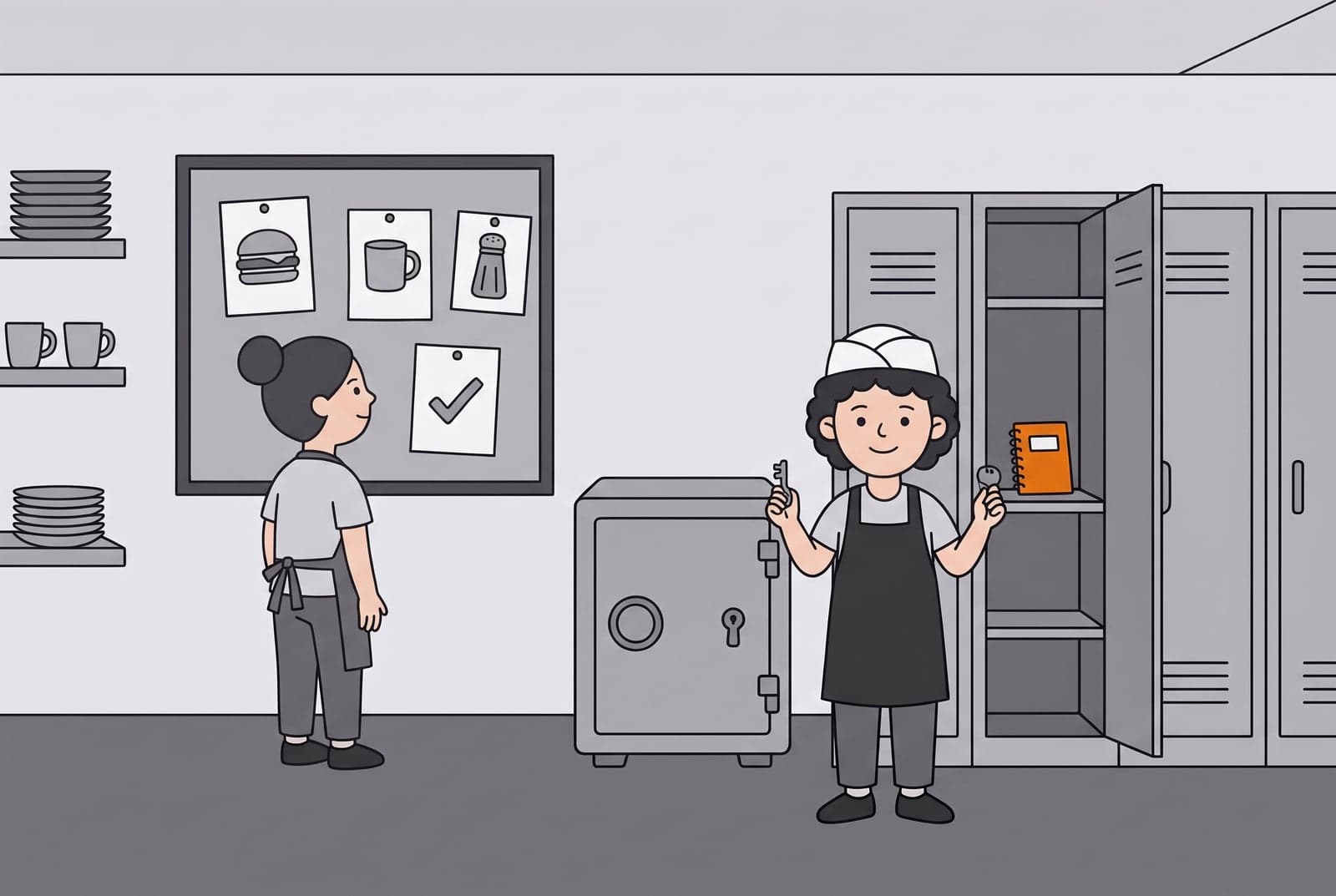
The front desk works, but every stall still shows the same plain page, "Welcome to nginx!" Nothing says it's Sam's. The stalls need a sign: the stall's name, a welcome line and the burger logo.
The sign isn't part of the recipe card, though, and Sam doesn't want to pack new boxes every time the sign changes. So Sam uses the back room. Three things stand against the wall, and Sam holds two keys.
The first is a notice board. Sam pins the sign's page and the burger logo to it, and every cook reads them from there, the way the helper in the picture stops to read the board. Change a sheet on the board, and every stall shows the new one.
The second is a safe, for things not everyone should see, like the recipe for the secret sauce. One of Sam's keys opens it.
The third is a row of lockers, and the other key is for those. Sam keeps a notebook in one of them, with the time of every visit written down. Cooks come and go, and when one is replaced, the new cook has to find the notebook with all the old entries still in it. If it were kept at the counter, it would leave with the cook.
Kubernetes gives you the same three places outside the image:
- A ConfigMap is the notice board. It holds settings and small files, and pods read them from there. Here it holds the sign's page and the logo, so changing the sign never means building a new image.
- A Secret is the safe, for passwords and keys. Be careful with this one. A Secret is stored as base64, and base64 isn't encryption. It only changes how the text looks, and anyone who can read the Secret can turn it back in one step.
- A PersistentVolumeClaim (PVC) is asking for a locker: "I need 100 MB that stays put." A pod's own storage disappears with the pod, so anything that has to outlive a cook goes on a volume. The cluster finds the actual locker, a PersistentVolume (PV), and attaches it to the pod.
Pause and think: You'll read the secret sauce back as plain text with one command. If base64 doesn't protect it, what does?
Try it: pin up the sign and lock away the sauce
-
Pin the page and the logo to the notice board.
cd ../03-config-and-branding
kubectl create configmap sign-html --from-file=index.html
kubectl create configmap sign-logo --from-file=assets/burger.png
Look at what's on the board:
kubectl get configmap sign-html -o yamlYour page is in the
data:section. If you seeAlreadyExists, you made these on an earlier try, and you can keep them. -
Put up the sign.
kubectl apply -f sign.yamlThis starts two pods and a Service on port 30081. Open http://localhost:8081. You should see Sam's Burger Stall with the burger logo.
In
sign.yaml, thevolumes:part joins both ConfigMaps into one folder, andvolumeMounts:puts that folder where nginx serves its files from. -
Change the sign. Open
index.html, change the heading, and update the board:kubectl create configmap sign-html --from-file=index.html \ --dry-run=client -o yaml | kubectl apply -f -Wait about a minute, then refresh http://localhost:8081. The new heading shows up, and no pod was restarted. Files from a ConfigMap are updated in place, and nginx reads the new file.
Now try a restart, to compare:
kubectl rollout restart deploy/stall-sign
kubectl rollout status deploy/stall-sign
The pods are replaced with new ones, and the page is still right. A restart is only needed for settings a program reads once when it starts, such as environment variables.
-
Lock the secret sauce in the safe. Make a Secret, then read it back:
kubectl create secret generic secret-sauce --from-literal=recipe=smoky-garlic
kubectl get secret secret-sauce -o jsonpath='{.data.recipe}' | base64 -d; echo
The second command prints
smoky-garlic. That's the whole "lock". In a real cluster, what keeps the safe shut is Kubernetes permissions (RBAC), which give each person and program only the access it needs. And secret values stay out of any file that goes into Git. -
Check your work.
bash verify.shIt prints
PASS: stall sign reachable on :8081andPASS: secret-sauce exists. Leave the sign up.
Try it: keep the notebook in a locker
-
Ask for a locker and start the notebook.
cd ../04-persistent-storage kubectl apply -f pvc.yaml -f notebook.yaml kubectl get pvc,pvpvc.yamlasks for 100 MB.notebook.yamlruns a tiny program that writes the time into/notebook/visitors.logevery five seconds. The PVC may sayPendingfor a few seconds, thenBoundonce the notebook pod starts. That's normal. -
Read the notebook.
kubectl exec deploy/notebook -- cat /notebook/visitors.logexecruns a command inside the pod. You'll see dates and times, one per line. Run it again in a minute and there are more. -
Replace the cook. Delete the notebook's pod, but not its Deployment:
kubectl delete pod -l app=notebook
kubectl get pods -l app=notebook
When the new pod says
Running, read the notebook again:kubectl exec deploy/notebook -- cat /notebook/visitors.logThe old entries are still there, because the new pod opened the same locker. The new cook found the notebook and kept writing where the old one stopped.
-
Find out where the locker is.
kubectl get pv -o yaml | grep -A6 nodeAffinityLook for
kubernetes.io/hostname. It names the one worker the locker lives on, so the notebook pod has to run there too. If that computer fails, the notebook is stuck on it. That's why real clusters use storage any worker can reach, such as cloud disks or network file systems. -
Check your work.
bash verify.shIt prints
PASS: locker bound and <n> notebook lines present, where<n>is how many lines the notebook has so far. -
Empty the locker. When you're done, remove the notebook and its locker:
kubectl delete -f notebook.yaml -f pvc.yamlDeleting the PVC empties the locker for good. That's what "persistent" means here: the data lasts until you delete the claim.
The morning check-in
Health checks
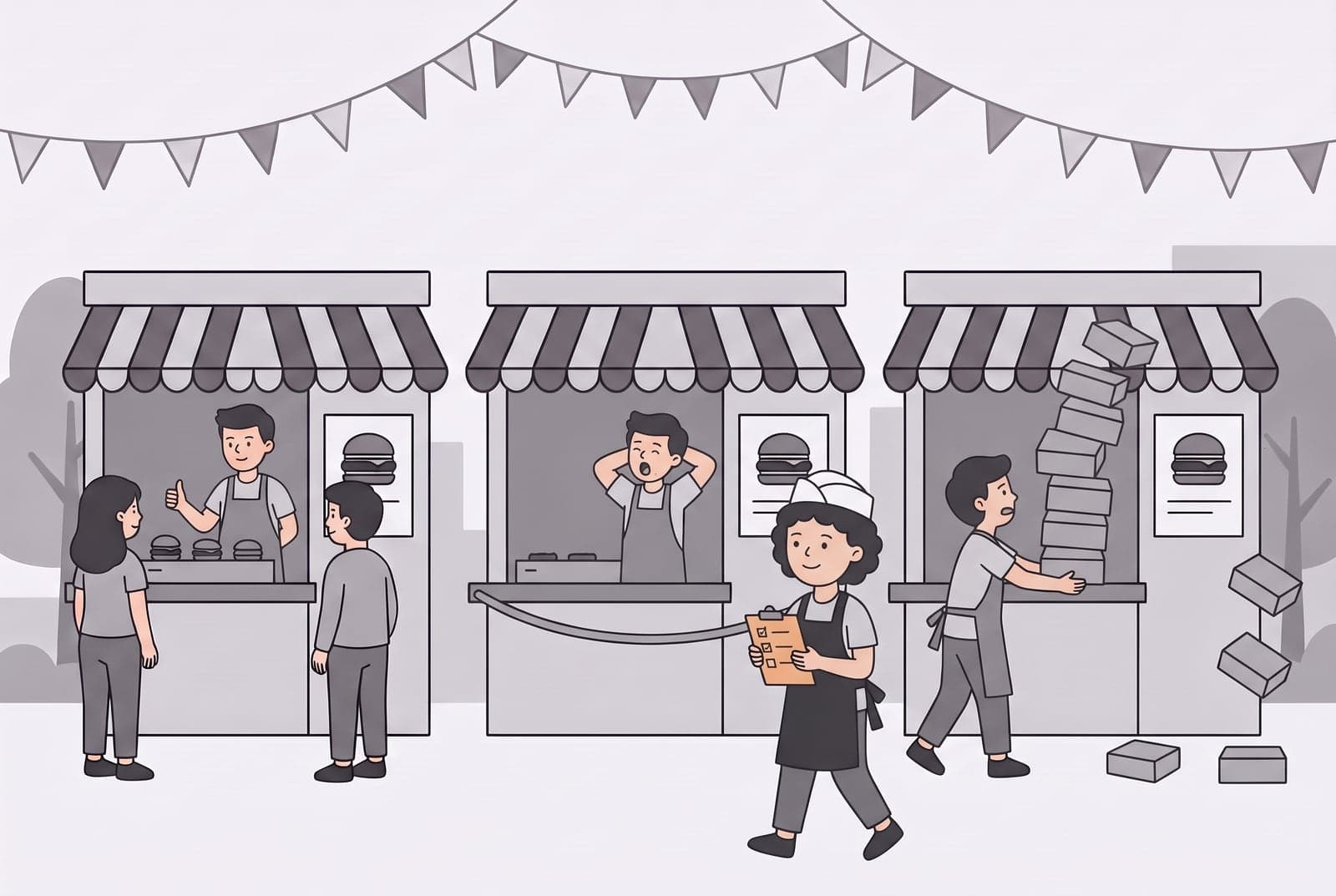
So far, Kubernetes notices a cook who leaves and brings in a new one. But a cook can stand at the counter and still not be able to serve, and from the front desk, that cook looks just as fine as the others.
So every morning, before the fair gets busy, Sam walks past the stalls with the clipboard and checks on each cook.
At the left stall, the cook gives a thumbs up and is already serving two customers. Tick.
At the middle stall, the cook is still yawning and stretching. Sam doesn't send him home. Sam hangs a rope across his counter, and the front desk sends nobody there until he's ready.
At the right stall, a cook is trying to carry a tower of boxes, far more than anyone is allowed to carry at once. The tower is already toppling, so the cook is stopped before it comes down on someone.
Kubernetes runs this check all day, not only in the morning. It can ask each pod two different questions, and the pod's plan says which ones to ask:
- A readiness probe asks "Are you ready for customers?" A pod that says no is taken off the front desk's list, like the cook behind the rope. It isn't restarted. Not ready is often only for a while, such as a program that is still starting up, and the pod goes back on the list as soon as it answers yes.
- A liveness probe asks "Are you still alive?" A pod that says no is restarted with a fresh start.
A cook who simply walks off is easier. When the program inside a container stops, Kubernetes starts it again in the same pod. If it stops again straight away, Kubernetes waits a little longer before each new try, and the pod shows CrashLoopBackOff. The pod's logs usually say why.
The tower of boxes is a memory limit: the most memory a container may use. A container that goes over it is stopped, and the pod shows OOMKilled, short for "out of memory". Without limits, one greedy program could use all the memory on a computer and slow down every other pod on it.
Pause and think: The cook behind the rope gets no customers, but nobody replaces him. Why might leaving him alone be better than a restart?
Try it: run the morning check-in
Lab 05 opens its own three stalls, so it doesn't need anything from the earlier parts.
-
Open three stalls for the morning.
cd ../05-health-and-self-healing
kubectl apply -f morning-stall.yaml
kubectl get pods -l app=morning-stall
Wait until all three pods show
READY 1/1. Openmorning-stall.yamlwhile you wait. ItsreadinessProbeasks each cook for the home page every 3 seconds, itslivenessProbechecks every 5 seconds that the door on port 80 is open, andlimitssays how much each cook may carry. The file also has a Service calledmorning-stall, the front desk for these cooks. -
Put a rope across one counter. Pick one pod and delete its web page, so nginx has nothing to serve:
POD=$(kubectl get pod -l app=morning-stall -o name | head -1)
kubectl exec $POD -- rm /usr/share/nginx/html/index.html
kubectl get pods -l app=morning-stall -w
Press
Ctrl+Cafter about 15 seconds. That pod still saysRunning, butREADYshows0/1. Now look at the front desk's list:kubectl get endpoints morning-stallThe broken pod's address is gone, and customers only go to the two ready cooks. Nothing restarts it, because a readiness probe only decides who gets customers. To fix it, delete the pod, and the Deployment brings in a fresh cook:
kubectl delete pod $POD
kubectl get pods -l app=morning-stall
Wait until all three show
READY 1/1again. -
A cook stops, and comes back. Stop nginx inside one pod:
POD=$(kubectl get pod -l app=morning-stall -o name | head -1)
kubectl exec $POD -- nginx -s stop
kubectl get pods -l app=morning-stall
The
RESTARTScolumn goes up to1. When nginx stopped, its container stopped too, and Kubernetes started it again. No probe was needed for that. A liveness probe is for the harder case: a program that is still running but has stopped working, like a web server that hangs. -
Find out why a cook keeps crashing.
kubectl apply -f crashloop.yaml
kubectl get pods -l app=crashloop
After a minute the status shows
CrashLoopBackOff. Ask the pod what went wrong:kubectl logs deploy/crashloopThe log says
DATABASE_URL is not set. This cook needs to know where the filing cabinet is, and nobody told them. Opencrashloop.yamland add anenv:part underimage: busybox:1.36, lined up with it:env: - name: DATABASE_URL value: postgres://cabinet.example.internal:5432/stallApply it and look again:
kubectl apply -f crashloop.yaml
kubectl get pods -l app=crashloop
The pod reaches
RunningandREADY 1/1. -
A tower of boxes too tall.
kubectl apply -f memhog.yaml
kubectl get pod memhog
This pod runs a program that uses 150 MB of memory, but its limit is 100 MB. Kubernetes stops it, and the status shows
OOMKilled(orError). It doesn't come back, because this pod is set never to restart. Find the reason:kubectl describe pod memhogLook for
Reason: OOMKilled. To fix it, raise the limit inmemhog.yamlfrom100Mito250Mi. You can't change a running pod's limit here, so delete it and apply again:kubectl delete pod memhog kubectl apply -f memhog.yaml kubectl get pod memhogNow it says
Running. -
Check your work.
bash verify.shIt prints
PASS: all three scenarios fixed. -
Close the morning stalls.
kubectl delete -f morning-stall.yaml -f crashloop.yaml -f memhog.yaml
One recipe card, different settings
Helm charts
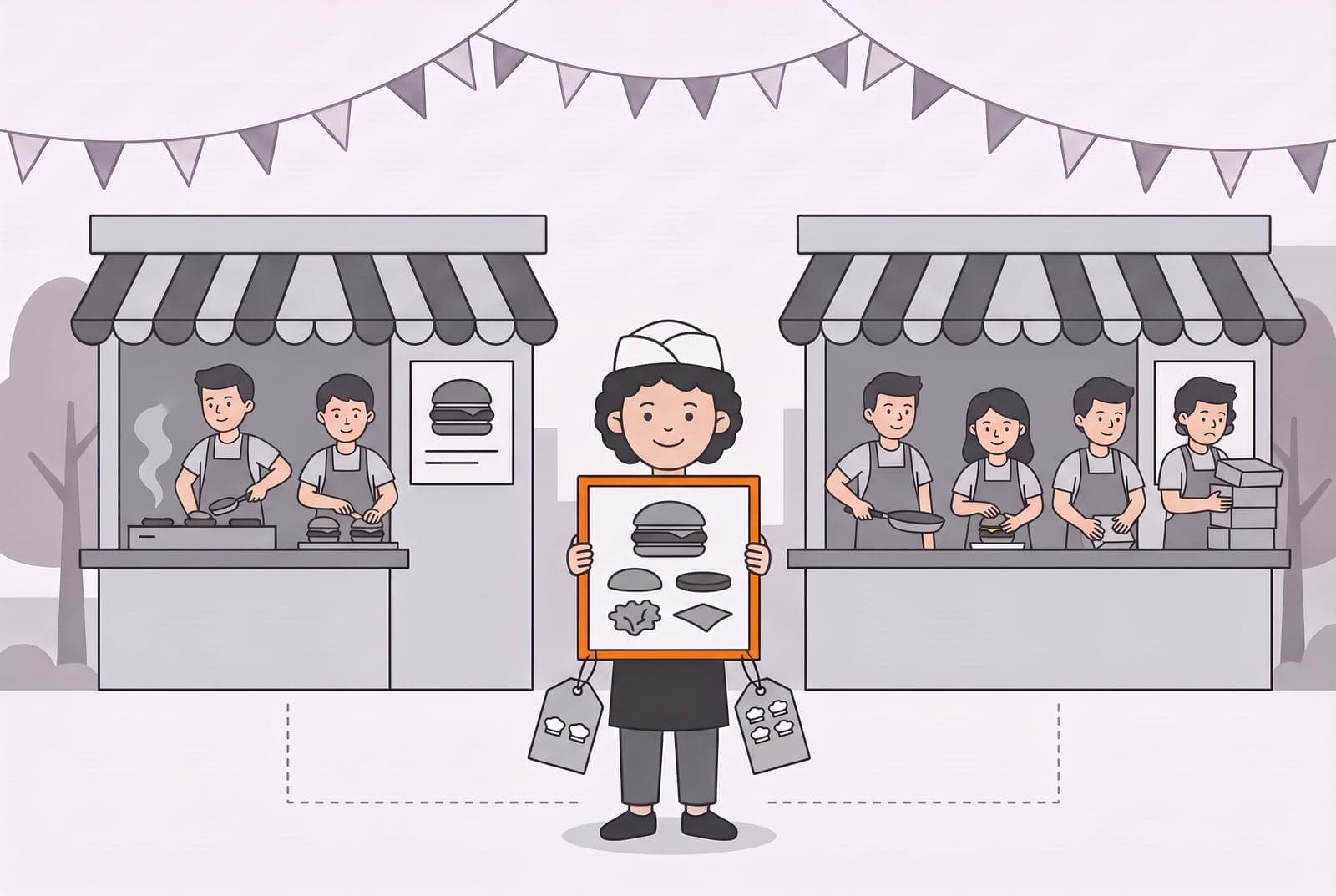
Every stall so far was written by hand: a file for the cooks, a file for the front desk, a file for the sign. Now Sam wants stalls of different sizes. A small one with two cooks, and a big one with four.
Copying all those files for every stall and changing a few numbers is slow, and it's easy to miss one. So Sam writes one more recipe card.
It looks like the burger card from the beginning, but it isn't the same card. That one made a single box. This one describes a whole stall: which image the cooks use, and how many cooks there are. Two small tags hang from it. One says two cooks, the other says four. Same card, a different tag, and you get a different stall.
In Kubernetes, that card is a Helm chart. Helm fills in your Kubernetes files for you:
- The chart's templates are the card. They're the same YAML files as before, with blanks in them, like
replicas: {{ .Values.replicaCount }}. - The values are the tags.
values.yamlholds the default settings, and--setchanges one setting for one install without editing any file. - Each install is a release. One chart can make many releases, each with its own values. Helm remembers every change to a release as a revision, so you can go back to an earlier one.
Pause and think: You install the same chart twice and get a small stall and a big one. What changed between the two installs, and what stayed exactly the same?
Try it: one card, two stalls
-
Read the recipe card.
cd ../06-helm
helm version
ls stall
head -20 stall/values.yaml
helm versionshould print a version. Installyou'll seeChart.yaml,values.yamland atemplatesfolder. Invalues.yaml, findreplicaCount: 1, the number of cooks by default, andtag: "1.27", the nginx version by default. Then openstall/templates/deployment.yamland find thereplicas:andimage:lines. Their{{ ... }}blanks are what Helm fills in from the values. -
Open a small stall.
helm install small-stall ./stall --set image.tag=1.27 --set replicaCount=2
helm list
kubectl get deploy small-stall
helm listshows the releasesmall-stall, and the Deployment showsREADY 2/2: two cooks, because you setreplicaCount=2.If you'd like to see the page, run
kubectl port-forward svc/small-stall 8888:80, open http://localhost:8888, and pressCtrl+Cwhen you're done. -
Open a big stall from the same card.
helm install big-stall ./stall --set image.tag=1.27 --set replicaCount=4 kubectl get deploy small-stall big-stallsmall-stallhas two cooks andbig-stallhas four. The card didn't change. You used it twice, with a different tag each time. -
Change a setting, then go back.
helm upgrade small-stall ./stall --set image.tag=1.27 --set replicaCount=3
kubectl get deploy small-stall
The small stall has three cooks now. Look at its history, and roll back to the first revision:
helm history small-stall
helm rollback small-stall 1
kubectl get deploy small-stall
Revision 1 was the first install, with two cooks, so the count goes back to 2. A rollback is a new revision too, so the history keeps growing.
-
Fill in the card without opening a stall. Helm can print the finished YAML without touching the cluster:
helm template small-stall ./stall --set replicaCount=5 | grep replicas:It prints
replicas: 5. Helm put your value into thereplicas:blank. Run it without| grep replicas:to see the whole file. -
Change the card's defaults. In
stall/values.yaml, change two lines:replicaCountfrom1to2, and the imagetagfrom"1.27"to"1.27-alpine". Then see what the small stall is still holding on to:helm get values small-stallUnder
USER-SUPPLIED VALUESit lists the imagetag: "1.27"andreplicaCount: 2, from the--setoptions you typed in step 2. Helm keeps values you passed before, so a plainhelm upgradewould keep1.27and quietly ignore your edit.--reset-valuesclears those old settings and uses onlyvalues.yaml:helm upgrade small-stall ./stall --reset-values kubectl get deploy small-stall \ -o jsonpath='{.spec.template.spec.containers[0].image}'; echoThe small stall now has two cooks on
nginx:1.27-alpine. The big stall didn't change, because a release only changes when you upgrade it. -
Check your work.
bash verify.shIt prints
PASS: one recipe card, two stalls: small-stall has 2 cooks on nginx:1.27-alpine, big-stall has 4. -
Close both stalls.
helm uninstall small-stall big-stall
Thanks for reading. Share your thoughts, or any message, in the comments below.
Comments
Comments come from giscus, a third-party service that keeps them in GitHub Discussions. You sign in with GitHub to write one, which keeps a login token in your browser.